
Frequentlyasked questions.
Common Errors
Several more commone errors that customers have experiences when useing the agnoStack plugin (along with corresponding causes and remediations) can be found below.
FAIL HTTPS CERTIFICATE
If you see an error within the agnoStack plugin containing an Error Type of "fail-https-certificate", this is usually related to having an invalid HTTPS certificate somewhere within the certificate chain to your API endpoints (or an unsupported version of TLS).
The agnoStack plugin leverages Zendesk’s built in secure proxy to access your API endpoints. Zendesk's proxy will only be able to access the APIs when available over HTTPS (for security reasons) and as part of each request, they check to make sure that the TLS certificate on your server is valid.
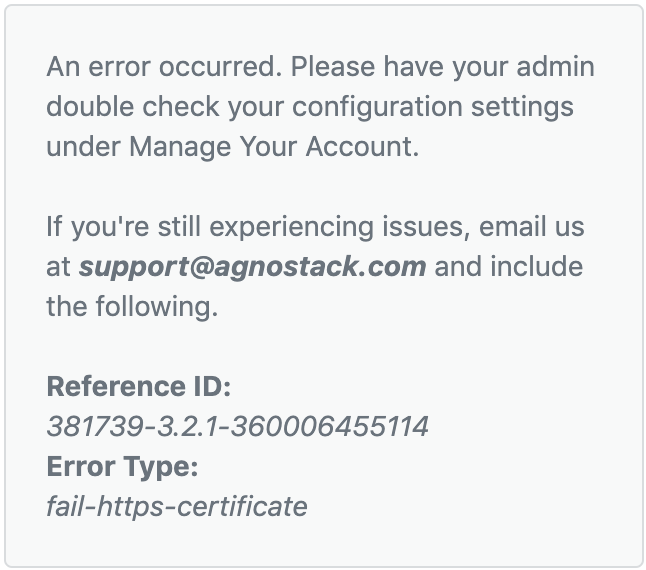
You can run a quick test of your domain at https://www.ssllabs.com/ssltest/analyze.html and see if it is showing any error information for your certificate. If there are errors in your certificate, please resolve them with your technical support team. If you still see an Error Type of "fail-https-certificate", email us at support@agnostack.com.
URL redirects - Fail Orders
For security purposes, Zendesk's built-in secure proxy used by the plugin to access your APIs does not support redirects. Having redirects in place will often result in "fail-orders" errors within the new app.
Make sure the all URLs accessed by the plugin for the configuration you have entered are not relying on redirects at the CDN, network, or server level.
Restricted Browser Cookies/Local Storage
If the plugin fails to load properly, it is possible that it could be related to your Browser settings, specifically related to the blocking of Third-Party Cookies.
Check your Browser settings (usually in the Privacy and Security section - depending on browser) and ensure that you are not blocking Third-Party Cookies for Zendesk apps. If you have settings enabled which are blocking access for all (or some) domains, you may need to unblock Zendesk's app domain. In order to do this, enter the following value in your cookie settings: "[*.]apps.zdusercontent.com".
For Chrome users, the following article explains how to manage cookies: https://support.google.com/chrome/answer/95647. Similar settings exist for Safari, Firefox, Edge and most modern browsers.
Browser Tab Extensions (QuickTab, TabGrab)
If you are connecting Shopify Premium for Zendesk or BigCommerce by agnoStack and the fields stay empty after you approve the connection, a Chrome tab-management extension is the most likely cause.
When you approve the connection, a new browser tab opens Zendesk and returns the connection details to agnoStack. Some Chrome tab-management extensions, such as QuickTab or TabGrab, close that new tab and move you back to your original Zendesk tab. Some versions of these extensions drop the connection details on the way.
To connect, either:
- Open the extension's options and set it to "Just ticket links" (or turn it off) while you connect.
- After you click Connect, close your original Zendesk tab (as the on-screen message "Authenticating in a new browser tab/window, please close this one" suggests) and finish in the new tab.
Then click Connect again on the Manage Your Account screen. You can switch the extension back once you are connected.
Firewall Restrictions
If the plugin fails to load properly, it is possible that it could be related to your local or network wide Firewall settings.
Check your local Firewall settings first to confirm that access is open for requests going "agnostack.io" domain (as well as subdomains including "static.agnostack.io"). The preference here is to ensure that access to the full set of files at *.agnostack.io is accessible.
After you've enabled access to the domain, please refresh your browser to confirm if the app is now loaded. If the app still fails to show, it may require a change at your network firewall level to be able to access the same domain.
If you require any technical assistance working through any of the items noted above, feel free to contact us any time via support@agnostack.com and we're happy to help!