Frequentlyasked questions.
Modify Billing Info
You can change the billing information for your agnoStack account (as an administrator) directly from within the plugin inside of your Zendesk instance at any time.
By clicking the "Manage Your Account" link at the bottom of the agnoStack plugin, you can modify your subscription tier, apply a promotion, change you billing email, billing name, credit card on file - or even cancel your subscription.
1. Load any ticket within your Zendesk account to be able to access the agnoStack plugin.
2. At the bottom of the plugin, you can click on the Manage Your Account link.
3. Do not make any changes on the first screen, just click the Subscription button at the bottom of the page to go to the second page within Manage Your Account.
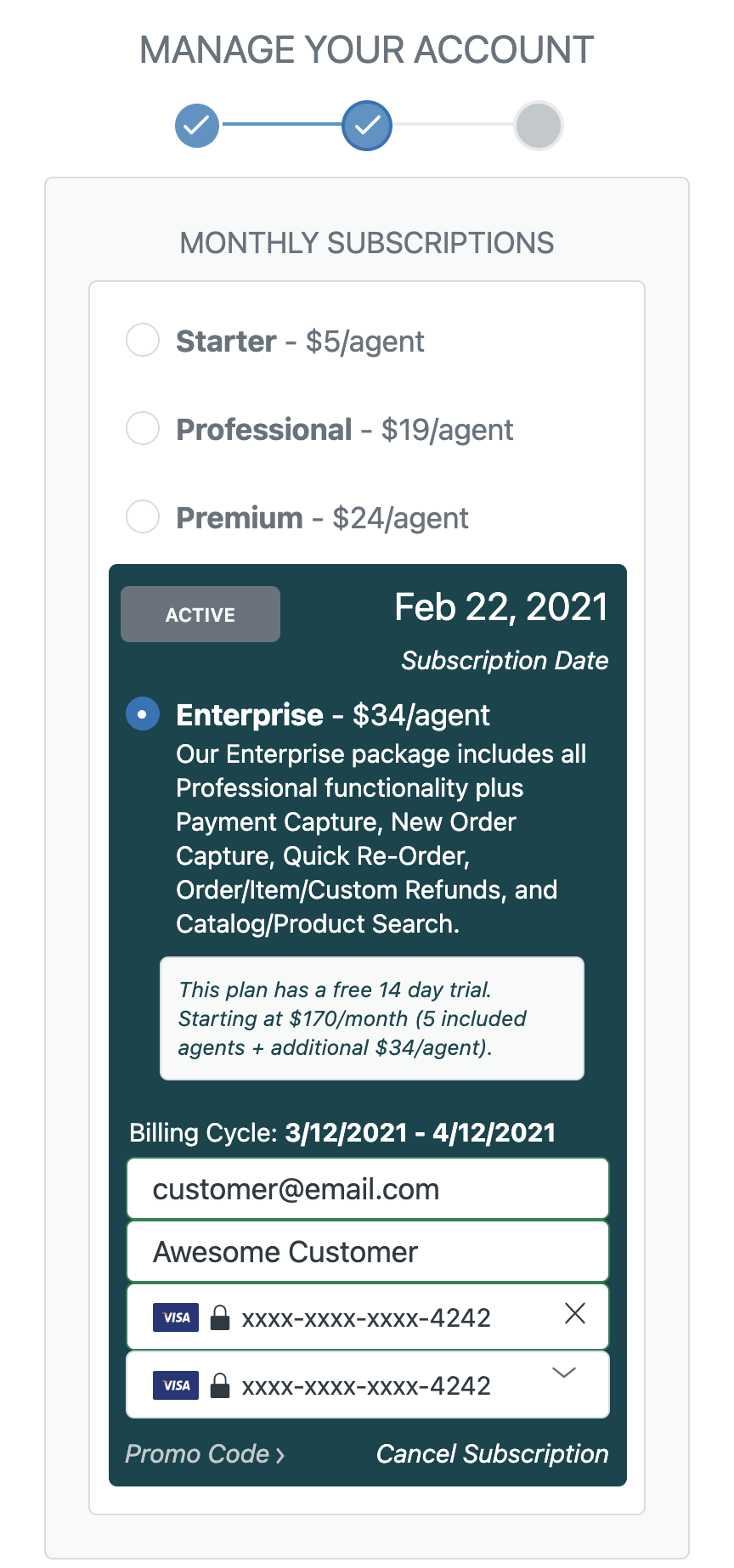
4. Once on the MONTHLY SUBSCRIPTIONS screen, you can edit your credit card and billing information by clicking on the Credit Card input (see picture below). This will open your secure billing portal to make any necessary adjustments. Once complete, you can close the portal popup window and your updated information will be reflected.
5. After entering in new information, click through the Optional Add-On step (if available for your configuration). No further changes need to be made after your billing information has been entered.
6. Continue to the next step until you reach the final CONFIRM CONFIGURATION screen, then click Review.
7. Once on the final configuration screen, be sure to click Activate to save your changes and reload the plugin.
If you run into any trouble or need additional assistance, please contact us any time at support@agnostack.com.
2. At the bottom of the plugin, you can click on the Manage Your Account link.
3. Do not make any changes on the first screen, just click the Subscription button at the bottom of the page to go to the second page within Manage Your Account.
4. Once on the MONTHLY SUBSCRIPTIONS screen, you can edit your credit card and billing information by clicking on the Credit Card input (see picture below). This will open your secure billing portal to make any necessary adjustments. Once complete, you can close the portal popup window and your updated information will be reflected.
5. After entering in new information, click through the Optional Add-On step (if available for your configuration). No further changes need to be made after your billing information has been entered.
6. Continue to the next step until you reach the final CONFIRM CONFIGURATION screen, then click Review.
7. Once on the final configuration screen, be sure to click Activate to save your changes and reload the plugin.
If you run into any trouble or need additional assistance, please contact us any time at support@agnostack.com.